Dollar Tree Travel Coffee Mugs - Cricut

Cliff Notes:
 This is a Super CHEAP project.  50 cent travel coffee cups from Dollar tree, scrap vinyl.  It is a major pain in the butt to weed.  But I'm not strong on patience.  It would be easier if you use bigger cups, and make the design bigger.

Some have said you can remove the Take It To Go logo with acetate and a magic eraser.  I tried, it didn't go great for me.  (I ended up painting those cups).  I decided to just put the design on the blank side, and leave the take it to go on the opposite side.  

Step By Step How I Did This:

Find the free SVG here - https://all-free-download.com/free-vector/download/starbucks-coffee-0_111169.html

The Starbucks font is Gibson.  You can download it for free here:

http://www.fonts101.com/fonts/view/Uncategorized/48928/Gibson

(Do that now, before you open design space.  If you need to know how to install a font, try this post:  
https://fieldsofhether.blogspot.com/2017/12/all-about-fonts-text-in-cricut-design.html)

Adding Text
Open a text box, type in your text, Choose the Gibson font.


Use The Curve Feature to curve your text.  If it does not fit the way you would like, ungroup your text, and manually move your letters - but in most cases, the curve feature should work great for this!


Now you have two options.  You can cut the letters out of white, and layer them on the green, or you can slice the letters out and let the background of the cup show through.

To slice, select your letters and weld.  You can only slice with TWO items selected at a time.  If you do not weld your letters, you will have to cut one letter out at a time.  If you weld the letters, you can slice them all out of the circle at once.


For these cups, I want a 3 inch decal.  So Select All, Choose Group, then in that top toolbar where it shows the size, type in a 3 and hit enter.


The cups I am using are the 2 for $1 "Take It To Go" Cups from the Dollar Tree.  I am leaving the Take It To Go on one side, and decorating the other side..

For the vinyl, I'm using 651. I buy it on Amazon, because...  free shipping.  I love Amazon prime!  Here's a look at my favorite vinyl, and where to buy it, with price comparisons including shipping costs: https://fieldsofhether.blogspot.com/2017/09/cricut-which-vinyl-do-i-need-where-do-i.html

For transfer tape, I use contact paper from the Dollar Tree.


I like to transfer my designs all at once when possible.  So I transferred the green to the transfer tape, then added the black center to the transfer tape - putting the entire design together before it touches the cup.  When transferring the design, flip the design upside down, and run the scraper tool over the back, then pull the white backing up gently, starting at one corner and pulling diagonally.

Now to place on the cup, fold lightly in half, non sticky sides together.  Not enough to crease, just enough to find the middle. Stick the middle to the cup, then press down one just one side. Once the one side is down flat, flatten the other side.


That's it!  The longest part of this process for me was the weeding.  This really was a pain to weed.   

(yes, I did realize, after taking this pic, that I had put the green ring on the Daleck cup sideways..  I was able to remove it and put it back on correctly.  It takes about 48 hours for the 651 to seal permanently, so it was an easy fix - for the most part)

==================

My Cricut Projects in 2017


In the last part of August 2017, I bought this magic machine.  I still don't completely understand all that it does - but here are a few of the things I have made with it in 2017!

Drawing with FUN fonts in Cricut

The markers in cricut will do more than just write, with many fonts, they can actually draw!  The pen will still follow the path of the blade, and that will leave you with an outline on many things, such as the cow - but on many of the decorative fonts, the outer lines will all collapse and leave you with just a decorative font great for posters!  Surprisingly, these fonts seem to draw much faster than the writing fonts that I use for writing simple text.

Alternative Markers For Cricut

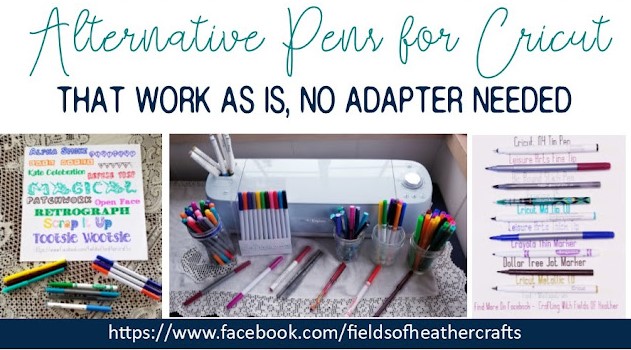
I rarely use Cricut Brand Markers.  They are almost always the most expensive option, unless there's a really good sale - and the off brands are just as good, if not better.  In addition to off brands made to look and write exactly like the Cricut Brand, a variety of other pens can be used in the machine, no adaptor needed.  For instance, a bic round stic pen works great.  As does the set of jot markers that are 20 for $1.25 at the Dollar Tree.    Here's a look at some of the various pens I've used over the years, in my machine:

Using Text In Design Space


Quick Tips Before We Get To The Long Details:

How To Use Free Fonts In Design Space

You can use any font in design space!  Unlike svgs, you do not upload fonts to DS, rather, you install them on your device, then find them under the "System" tab when choosing a font in Design Space.

Etching Cookie Plates - Christmas Gifts For The Neighbors

Etched Cookie Plates for Our Neighbors

The Cliff Note Version:


 This is one of those projects that I started at 7am, thought I'd be done by 10am, and actually completed around 7pm.  But once I got the process down, it really went fast.  


First I tried to use contact paper from the Dollar Tree as my stencil.  But it was too thin, and too clear to weed.  Then I tried 651, but I got part of it stuck onto a plate before I was ready and it was super hard to remove (even though it takes days to fully cure and be permanent).  Then I tried cardstock - but that's a pain, because the centers of my letters do not adhere, they move around.... and I tried the acetate that I bought for the acetate christmas ornaments (I had bought a pack that was NOT for the inkjet printer) but that was a combination of a pain to weed (clear ) and same as the cardstock, the centers would not stay put.  Finally I went to cricut 631 vinyl, and that worked.  I think a solid colored shelf liner would work for this too.

I could have used the 651. The trick is to place the stencil sticky side up, then place the plate down onto the stencil, rather than trying to place the stencil upside down on the plate.    Once you set the plate down, flip it over and smooth to make sure there are no air bubbles, then remove the transfer paper and add the etching cream.

For the stencil, create a box and slice your monogram out of it.  I added the last names in the split monograms, welded the name with the monogram, then sliced it from either a square, or for the wreath, a circle.

Don't forget to mirror it!  

I used the split monogram files from here:
http://caluyadesign.com/split-monogram-free-svg.html
and the wreath split monograms from here:
http://caluyadesign.com/wreath-monogram-free-svg.html
I have more options for monograms here:
http://fieldsofhether.blogspot.com/2017/11/free-monograms-split-monograms-for.html

Cover with etching cream.  Let sit for 15 minutes.  Scrape off the excess cream, put it back into the bottle.  Then wash off the rest of the cream, and remove the stencil.


==================